Bring back clarity.
Refocus soft footage, remove compression artifacts, neutralize a strong color grade or add fine detail. Choose the process that matches the problem.
Media Flow · Bundled WanGP app
Restore a treasured clip, extend the frame, sharpen an image or process a whole folder. The new Media Flow workspace brings the process, source, output and live progress together.
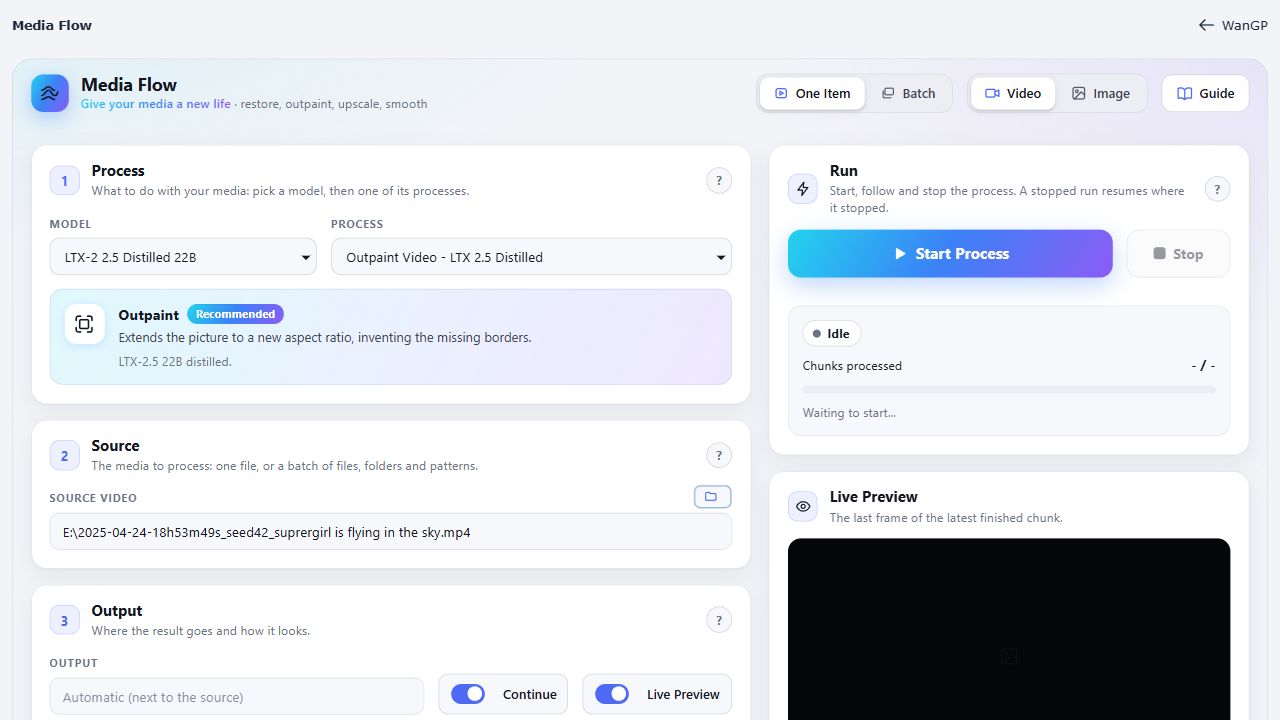
Choose the job
Choose a model, then one of its processes. Recommended presets are a useful starting point; availability depends on the model and your hardware.
Refocus soft footage, remove compression artifacts, neutralize a strong color grade or add fine detail. Choose the process that matches the problem.
Outpaint a video or image to a new aspect ratio. Describe the scenery to extend, then choose a resolution that preserves enough detail in the original picture.
Upscale resolution, interpolate frames for smoother playback or convert SDR material to HDR with a suitable process.
Long videos & batches
Media Flow works through long videos in chunks, keeping memory use bounded and assembling the output as it goes. Practical limits are your disk space, model and processing time.
Stop finishes the current chunk. Keep Continue enabled and restart with the same source, output and settings to pick up unfinished work.
Auto preserves the source audio tracks without re-encoding. Select a track number when you only need one.
Batch accepts files, folders or wildcard patterns, one per line. Name the batch, choose an output folder and follow completed files and failures in the Run panel.
Start in WanGP
Open Media Flow in the app bar. Choose Keep It if the introduction appears. Use Full Screen for the dedicated workspace, or add /media-flow/ to your WanGP server address.
Choose One Item or Batch, then Video or Image.
Read the process card. Use a Recommended preset for your first run, or link your own saved WanGP settings.
Browse to your file or enter the batch sources. Leave Output empty for an automatic name next to the source, or choose another location.
Set the resolution, ratio or upsampling factor. For a long video, test a short Start–End range first. Timed prompts can guide different sections.
Click Start Process. Watch chunk progress and the Live Preview, then find the finished file under Result.
For example, Uncompress first and Upscale next. Each process tackles one job. If memory is tight, reduce chunk size or output resolution, or choose a lighter process.
Also available to agents
Deepy and connected agents can run the same Media Flow processes. The app’s Run panel lets you follow and stop their work too. Media Flow runs one process at a time.
Meet Deepy →